

Kanban Swimlanes: What They Are, How to Use Them, and When You Actually Need Them
If you’ve been using a kanban board for a while, you’ve probably hit the point where it stops feeling clean. You started with a few cards and three columns and it was great. Then you picked up a second project. Or a third client. Or you’re like me and you have too many boards because there’s sooo many categories in my life. And now the board is a wall of cards where everything looks equally important and nothing is easy to find.
That’s the problem swimlanes solve. They’re not complicated — and like most things in kanban, the concept feels almost too simple. But they made an immediate difference for me, and I think they will for you too.
Full disclosure: I help build Leantime, which recently launched a swimlanes feature. I’ll reference it where relevant, but this guide is about kanban swimlanes in general — not a sales pitch.
What Are Kanban Swimlanes?
A kanban swimlane is a horizontal row on a kanban board that divides your cards into parallel categories.
The metaphor is right in the name. In a swimming pool, lane dividers keep swimmers from colliding — everyone has their own space and can move independently. Swimlanes do the same thing for your tasks.
Here’s the distinction that matters: columns on a kanban board show workflow stages — where a task is in your process (To Do, In Progress, Done). Swimlanes show what kind of work it is — which project it belongs to, who owns it, or how urgent it is. Columns answer “where is this?” Swimlanes answer “what is this?”Swimlanes can be types of categories.
Back to the gestalt principle I mentioned in the kanban board guide — systems exist in layers, and each layer has its own role. Columns are one layer. Swimlanes are another. Independently, they’re each useful. Together, they give you a two-dimensional view of your work that’s genuinely hard to get any other way. You can see both the status of every task and how it’s categorized, all on one board. 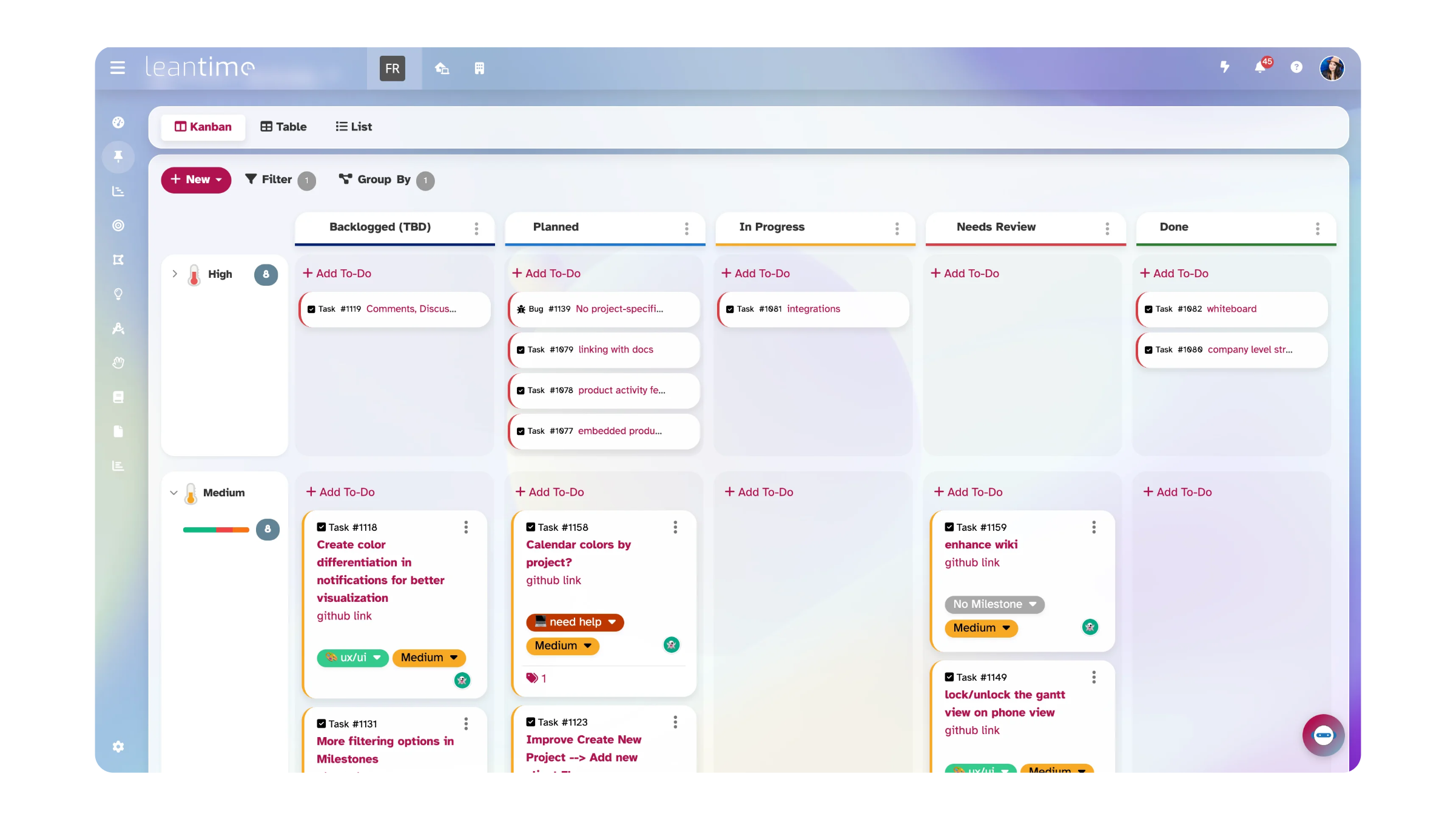
Originally, swimlanes were invented for a single purpose: expediting urgent work. In early kanban systems, teams added one horizontal lane at the top of the board for tasks that needed to skip the normal flow.
Over time, people realized the same idea could organize by team, project, client, priority — pretty much anything. That’s where we are today. And while we need to be careful about how we do this (it can be overwhelming on its own!), the added ability to see across the work creates new opportunities.
6 Types of Kanban Swimlanes (With Examples)
There’s no single right way to use swimlanes. It depends on what’s causing confusion on your board. Here are the most common setups and when each one makes sense.
1. Swimlanes by Priority
Rows: Urgent / High / Normal / Low
This is probably the most universally useful setup. When every card on your board looks the same, it’s hard to know what to work on next. I know for me, when I can’t see a clear priority, I’ll gravitate toward whatever feels easiest — not what actually matters. Priority swimlanes fix that by putting the most important work at the top of the board where you can’t ignore it.
This works well for support teams, ops teams, and anyone who deals with a mix of urgent and routine work throughout the day. If you’re someone whose brain treats all tasks as equally loud (hello, ADHD), making priority visible removes one layer of the “what should I do next?” spiral.
2. Swimlanes by Team Member
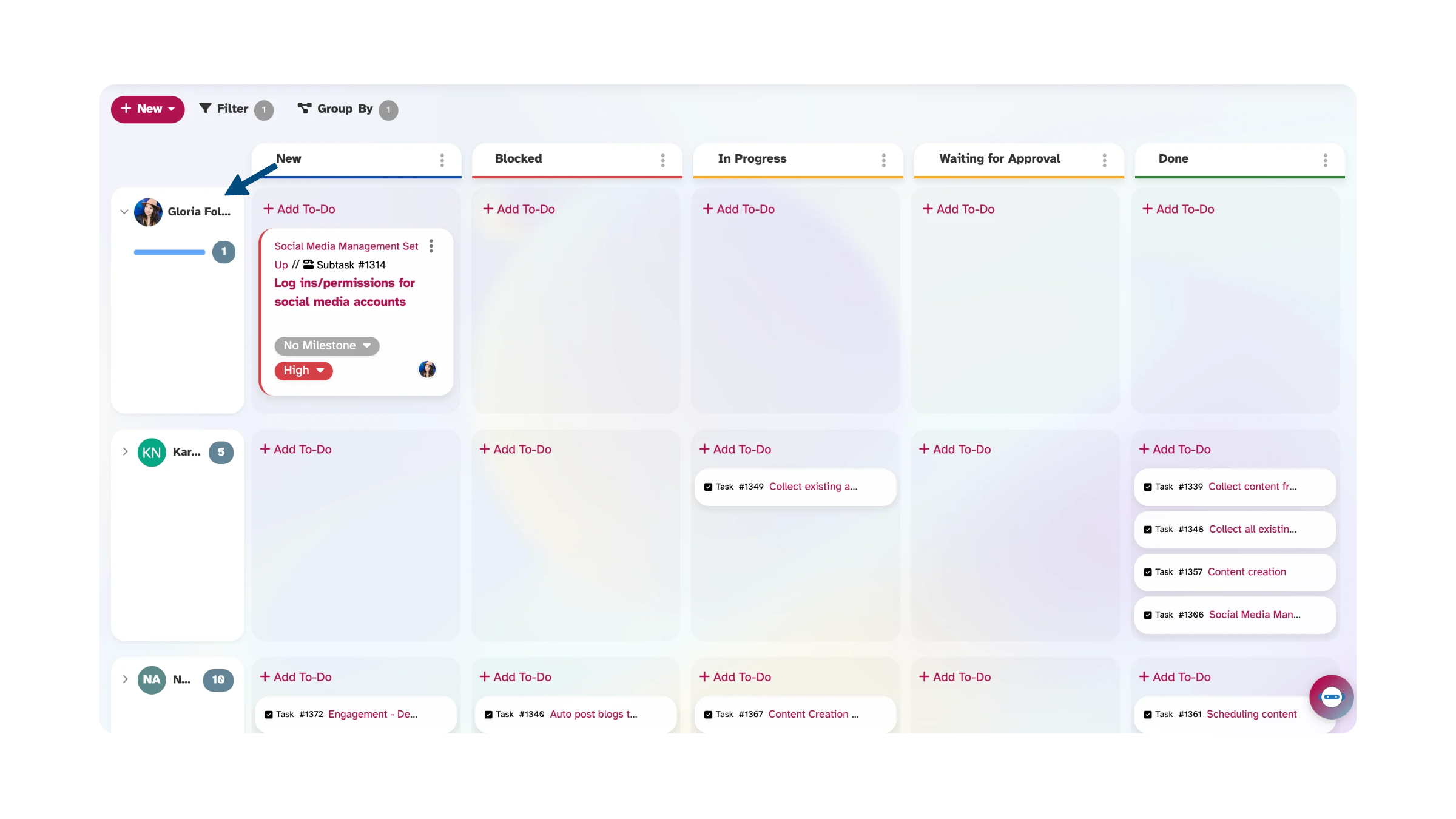 Rows: One row per person (e.g., Sarah / Marcus / Priya / Unassigned)
If you manage a team and need to see how work is distributed, this is the setup. You’ll immediately notice if one person’s lane is overflowing while another’s is nearly empty. It’s a quick, visual way to balance workload without having to ask everyone how busy they are — which, in my experience, never gets an honest answer anyway.
The “Unassigned” lane at the bottom is important. That’s where new work sits until someone picks it up. If that lane keeps growing, it’s a signal that the team is at capacity.
3. Swimlanes by Project
Rows: One row per project (e.g., Website Redesign / Mobile App / API Migration)
This is the go-to for any team running multiple projects at the same time. Instead of creating separate boards for each project and constantly switching between them, you put everything on one board and use swimlanes to keep projects visually separated.
It’s especially helpful for seeing resource conflicts. If most of your cards are piling up in one project’s lane, you know that’s where your team’s time is going — whether or not that’s where it should be going.
4. Swimlanes by Client or Funder
Rows: One row per client (e.g., Acme Corp / Greenfield Foundation / Internal)
Agencies, freelancers, and consultancies will get a lot out of this one. When you’re juggling deliverables for multiple clients, it’s easy for one client’s work to quietly fall behind while you’re focused on another. A swimlane per client makes that visible before it becomes a problem.
This also works really well for nonprofits managing multiple grants. Set up a lane for each funder or program area — say, Youth Services, Community Health, Workforce Development — and you can see at a glance which programs are on track and which have tasks stacking up. I’d also add an “Internal” lane for operational work that isn’t grant-funded. That stuff tends to get lost in the shuffle, and it’s usually the work that keeps the lights on.
5. Swimlanes by Work Type
Rows: Features / Bug Fixes / Maintenance / Research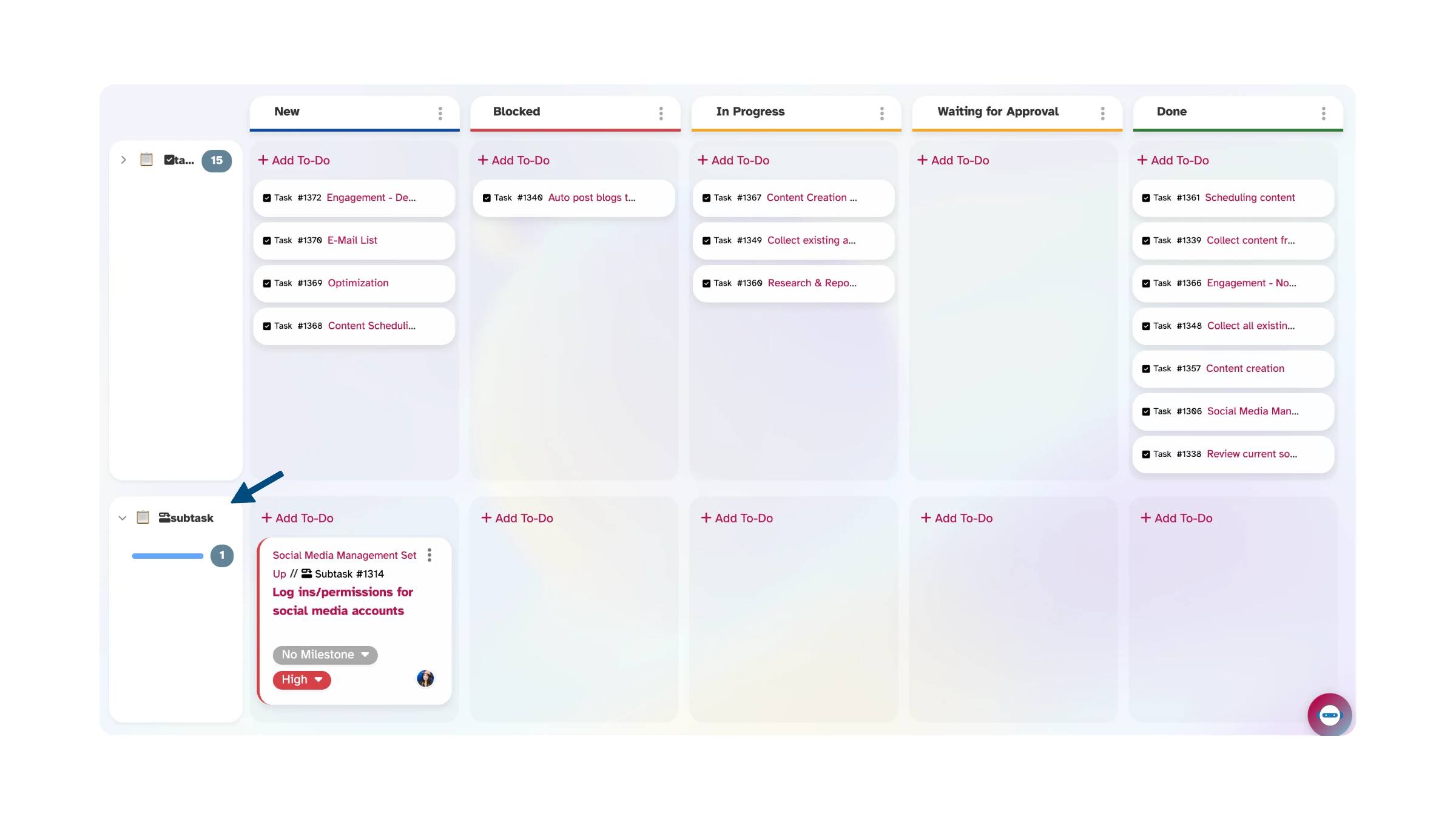
Software teams and IT departments deal with fundamentally different types of work that compete for the same people’s time. A feature request and a critical bug fix both show up as cards on your board, but they have very different urgency and impact.
Separating by work type helps teams balance reactive work (bugs, incidents) against proactive work (features, improvements). Without this visibility, most teams end up spending all their time on fires and never getting to the work that actually moves things forward. I’ve seen this pattern everywhere — in tech, in healthcare, in nonprofits. The urgent always eats the important unless you make both visible.
6. The Expedite Lane
Rows: Just one lane at the very top of the board, often highlighted in red or orange
This is the original kanban swimlane — a single lane reserved for urgent, unplanned work that needs to bypass the normal flow. The rule is simple: only one item in the expedite lane at a time. If something new comes in that’s truly urgent, the current expedited item either gets finished first or goes back to the regular board.
The WIP limit of 1 is what makes this work. Without it, everything becomes “urgent” and you’re right back where you started. In nursing, we called this triage — you can’t treat everything as a code blue or you’ll never get to anything. The expedite lane works the same way. It’s for genuine emergencies: a production outage, a funder requesting an immediate deliverable, a client escalation that can’t wait.
How to Set Up Kanban Swimlanes
Setting up swimlanes is the easy part. The hard part is choosing the right dimension to organize by — and resisting the urge to organize by everything at once.
Step 1: Figure out what’s causing confusion on your board.
Ask yourself: “When I look at my board, what’s the main thing I’m struggling to see?” If you can’t tell whose work is whose, use team member lanes. If you can’t tell which project a card belongs to, use project lanes. If everything looks equally important, use priority lanes.
Pick one dimension. Don’t try to organize by priority AND project AND team member. It can feel natural to do but it turns your board into a spreadsheet, which defeats the entire purpose of having a visual tool.
Step 2: Keep it between 3 and 7 lanes.
More than 7 and the board gets hard to scan. If you genuinely have 12 active projects, that’s a sign you might need multiple boards rather than more swimlanes.
Step 3: Name your lanes clearly.
Bad lane names: “Lane 1,” “Misc,” “Other.” Good lane names: “Client: Acme Corp,” “Priority: Urgent,” “Program: Youth Services.” You want someone new to the team to look at the board and understand the organization immediately.
Step 4: Collapse what you’re not working on.
Most kanban tools that support swimlanes let you collapse individual lanes. Use this. If you’re focused on one project this morning, collapse the others so you’re only looking at what matters right now. I cannot overstate how much this helps if you’re someone who gets overwhelmed by a busy screen. Going from 40 visible cards to 8 changes everything about how your brain engages with the board.
Step 5: Revisit your lanes regularly.
Projects end. Clients leave. New priorities emerge. Your swimlane structure should reflect your current reality, not what was true three months ago. A quick check during your weekly board review is enough — add lanes for new work, archive or remove lanes for completed projects.
Swimlane Best Practices (and Common Mistakes)
Let’s talk best practices in using kanban swimlanes.
Things that work: Start with one dimension and see how it goes for a couple of weeks before adding complexity. Use WIP (Work in Progress) limits within swimlanes, not just on columns — this prevents any single project or person from hogging the board. Color-code your lanes if your tool supports it; color is processed faster than text, and your brain will start associating colors with categories without conscious effort. Collapse inactive lanes to keep the board scannable. And review your lane structure in retros — if a lane has been empty for weeks, it probably shouldn’t be there.
Common mistakes: Creating a swimlane for every possible category. I’ve seen boards with 15+ lanes where the team spent more time scrolling than working. This is actually why you’ll see the lanes in Leantime pre-defined. Using swimlanes as a status indicator — that’s what columns are for. Swimlanes are for categorization, not workflow stages. Ignoring empty lanes, which usually signal that your categories don’t match your actual work. And forcing swimlanes on a board that doesn’t need them. If your team is small and works on one project at a time, a flat board is fine. Swimlanes solve complexity — don’t add them to a board that isn’t complex yet.
How Different Tools Handle Swimlanes
If swimlanes matter to your workflow, it’s worth knowing that tool support varies more than you’d expect. Some tools do them well, some fake them, and some don’t have them at all.
| Tool | Swimlane Support | Setup | Notes |
|---|---|---|---|
| Leantime | Native visual swimlanes | Simple — built into the board | Open source, free to self-host. I help build this so take my opinion accordingly, but the swimlane design prioritizes scannability — clean separation, collapsible rows, not cluttered. |
| Jira | Native, JQL-based | Requires configuration | Powerful once set up — you can create lanes by story, assignee, epic, or custom JQL. But it’s not beginner-friendly and the learning curve is real. |
| Trello | None | N/A | This surprises a lot of people. Trello is probably the most well-known kanban tool, but it doesn’t have swimlanes. You can sort of approximate it with labels and filters, but it’s not the same thing. |
| Asana | None | N/A | Asana has a board view, but no swimlane functionality. |
| Monday.com | “Groups” (similar concept) | Moderate | Monday’s groups function like swimlanes in practice, though Monday isn’t really a kanban-first tool. |
The short version: if you need swimlanes and want something free, your options are Leantime (open source) or Jira (free for up to 10 users, but complex). If you’re currently on Trello and wishing it had swimlanes, that’s worth knowing — it’s one of the more common reasons people switch tools.
Why Swimlanes Help ADHD Brains
This is something I care about personally and don’t see covered anywhere else in guides on this topic.
A flat kanban board with 30+ cards can create the exact kind of visual overwhelm that makes ADHD brains shut down. The whole point of kanban is to make work manageable, but a cluttered board has the opposite effect. You look at it, feel paralyzed by the number of options, and end up doing nothing. Or — and this is my pattern — you start whatever catches your eye first rather than what actually needs to happen.
I wrote in the kanban guide about how I stay too high level in my to-do lists because too many tasks overwhelms me out of doing the work. Swimlanes help with this in a specific way: they break a massive board into smaller visual chunks that feel manageable.
Instead of scanning 40 cards, you’re scanning 4 lanes of roughly 10 cards each. Your brain processes groups faster than individual items — this is a real cognitive principle, not just a feeling. We use mental shortcuts all the time. In this case, each lane becomes its own manageable world rather than part of an overwhelming whole.
Priority swimlanes specifically help with what I’d call urgency blindness — that thing where everything on the board looks equally important, so you can’t decide what to start. When urgent work is physically separated from routine work, the decision gets made for you. One less thing your brain has to sort through.
And if your tool supports collapsible lanes, that gives you an “out of sight, focus on this” mode. Collapse everything except the lane you’re working in, and suddenly your board shows 5 to 8 cards instead of 40. That’s the difference between feeling focused and feeling frozen. For me, it’s the difference between a productive morning and an hour of staring at the screen pretending to decide.
If this resonates, we’ve written more about it: Mastering Task Management for ADHD and Work Management for ADHD and ADD.
Getting Started
Swimlanes are one of those features where you don’t realize what you were missing until you try them. If your kanban board feels messy, if you’re constantly searching for specific cards, or if you can’t tell at a glance how work is distributed — try adding 3 to 4 swimlanes organized by whatever dimension matters most to your team.
Start simple. One dimension. A few lanes. You can always add more later.
If you want to try it out, Leantime has a free cloud account or you can download the open source version and self-host. But the concepts here work in any tool that supports swimlanes.
Frequently Asked Questions
What is a swimlane in kanban? A swimlane is a horizontal row on a kanban board that groups cards into categories. While columns represent workflow stages (To Do, In Progress, Done), swimlanes represent a second dimension — like which project a task belongs to, who it’s assigned to, or how urgent it is. They help you organize a busy board without needing separate boards for everything.
Does Trello have swimlanes? No. Despite being one of the most popular kanban tools, Trello doesn’t offer native swimlanes. You can use labels and filters to approximate the effect, but there’s no way to create actual horizontal lanes on a Trello board. If swimlanes are important to your workflow, you’ll need a different tool.
How many swimlanes should a kanban board have? Aim for 3 to 7. Fewer than 3 and you probably don’t need swimlanes at all. More than 7 and the board becomes hard to scan — you’ll spend more time scrolling than working. If you need more than 7, consider splitting into multiple boards or collapsing inactive lanes.
What’s the difference between swimlanes and columns? Columns are vertical and show workflow stages — they answer “where is this task in the process?” Swimlanes are horizontal and show categories — they answer “what kind of task is this?” Together, they give you a two-dimensional view: you can see both status and categorization at the same time.
Are kanban swimlanes good for ADHD? Yes. A flat board with dozens of cards can create visual overwhelm and decision fatigue. Swimlanes break the board into manageable groups, make priority visible, and — if your tool supports it — let you collapse lanes you’re not focused on. This reduces the “where do I even start?” feeling that many people experience with busy task boards.
Can I use swimlanes in free kanban tools? Yes, but your options are limited. Leantime is open source and free to self-host with native swimlanes. Jira is free for up to 10 users and has swimlanes (though they require more setup). Most other free kanban tools, including Trello, don’t support swimlanes.